The Best Password Manager for Families in 2026
If your parent uses the same password for their email, their bank, and their Medicare account — and that password is their pet's name or their birthday — they're one data breach away from losing access to everything.
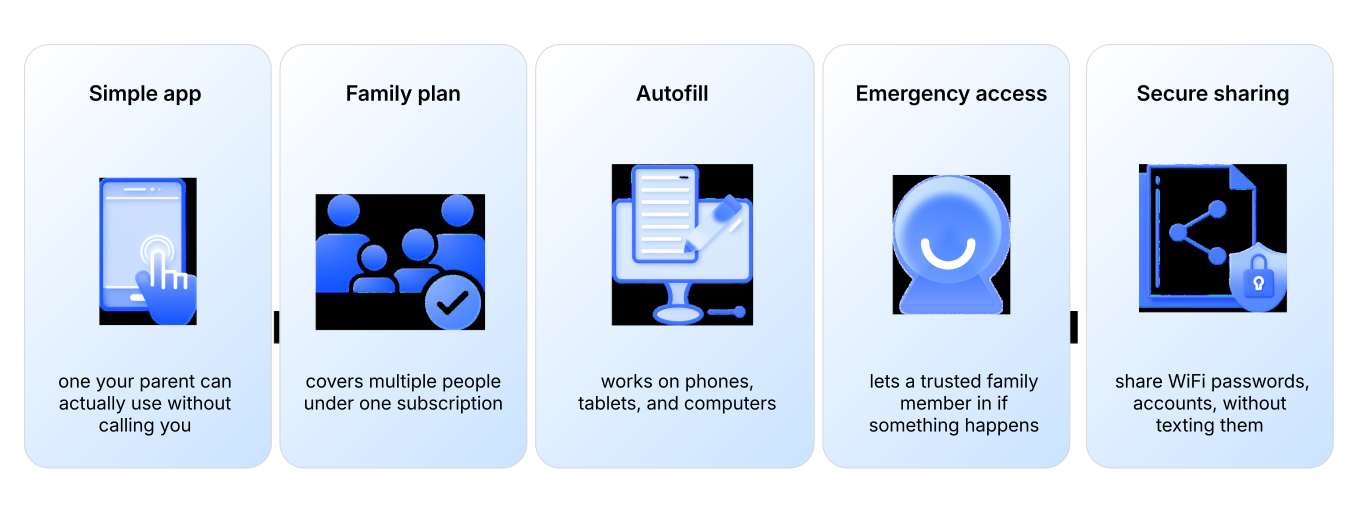
A password manager stores every login securely, generates strong unique passwords, and autofills them so your parent doesn't have to remember anything. You set it up once. They log in as normal. The security happens in the background.
Why This Is the Most Important Step
Most account takeovers don't involve sophisticated hacking. They happen because the same password was used on two sites, one of those sites got breached, and the scammer tried the same password on everything else.
A password manager closes this gap completely. Every account gets a different, strong password — and your parent only ever needs to remember one master password (or use their fingerprint).
What to Look for in a Family Password Manager
QUICK COMPARISON TABLE
1Password
Trustworthy
Best For
Password
management + family sharing
Digital
estate planning + passwords
Family Plan
Up to 5 users
Up to 5 users
Emergency Access
Account recovery
Full digital legacy vault
Ease of Use
★★★★★(very senior-friendly)
★★★★☆
Emergency Access
All devices
All devices
Price (approx)
$4.99/mo family
(annual $59.88/yr)
$10/mo (family)
Affiliate Commission
25% of first payment
($15/sale family plan)
via CJ Affiliate, 45-day cookie
Confirm before placement
Best For Families
$4.99/mo family
(annual $59.88/yr)
Also storing
document, wishes
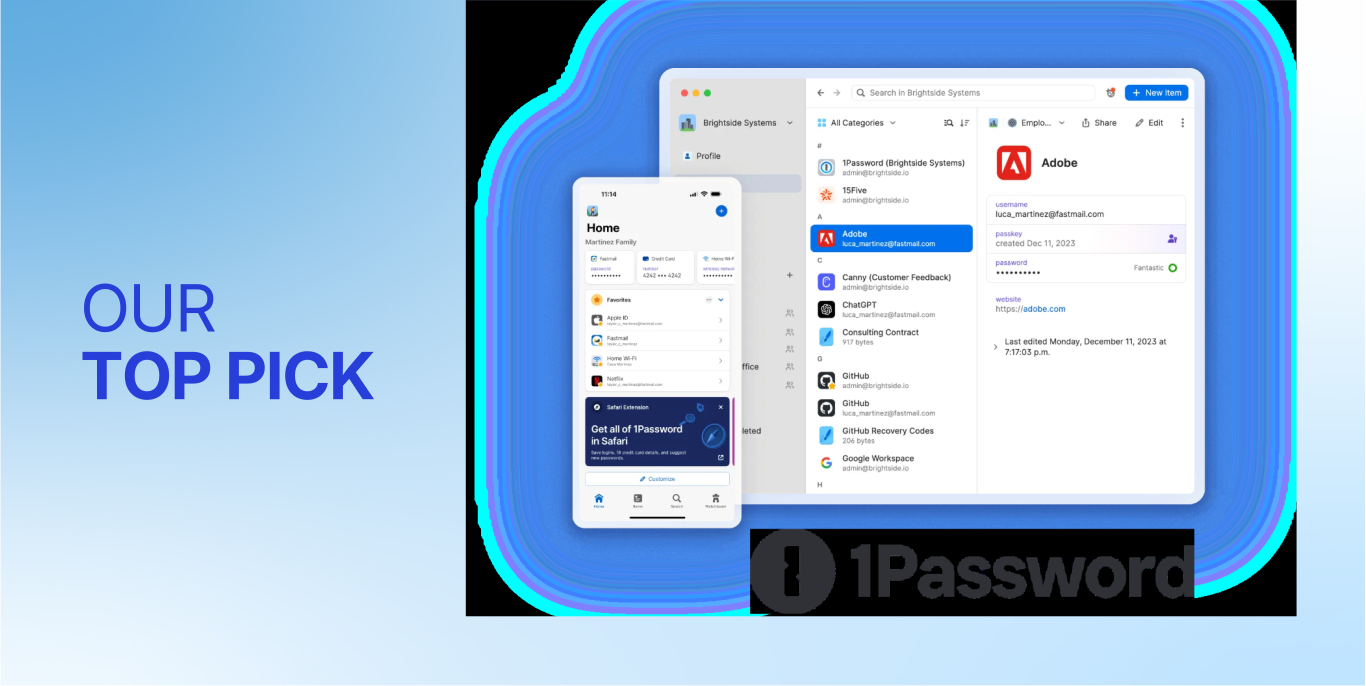
1Password is the most senior-friendly password manager available. The interface is clean, the autofill is reliable across phones and tablets, and the family plan is genuinely easy to manage. Emergency access means if something happens to your parent, a trusted family member can get in.
Stores unlimited passwords, cards, and secure notes
Family plan, up to 5 people, easy to add a parent
Travel mode, emergency kit, account recovery
One master password or biometric, that's all they need to remember
Watchtower feature alerts you to breached or weak passwords
Works on iPhone, Android, Mac, Windows, browser extensions
Trustworthy combines password management with digital estate planning. If your family is also thinking about what happens to accounts, documents, and wishes when a parent passes, Trustworthy covers both in one place.
Higher price than 1Password but serves a different — and important — additional purpose for families at this stage of life.
Password vault + document storage + end-of-life planning
Store account logins, insurance policies, medical wishes, funeral preferences
Family sharing — all members can access what they're permitted to see
HOW TO SET IT UP FOR YOUR PARENT

Step 1:
Create the family account and add your parent as a member
Step 2:
Start with the three most important accounts — email, bank, Medicare/healthcare portal
Step 3:
Install the app on their phone — show them the autofill icon
Step 4:
Set up the emergency kit and store it somewhere safe (not just digitally)
Step 5:
Over the next few weeks, add remaining accounts as they log in naturally
WHAT TO DO THIS WEEK
1
Start a 1Password family plan — invite your parent
2
Set up their email account first — email is the master key to everything else
3
Use Watchtower to scan for breached or reused passwords
If your parent uses the same password for their email, their bank, and their Medicare account — and that password is their pet's name or their birthday — they're one data breach away from losing access to everything.
A password manager stores every login securely, generates strong unique passwords, and autofills them so your parent doesn't have to remember anything. You set it up once. They log in as normal. The security happens in the background.
Why This Is the Most Important Step
Most account takeovers don't involve sophisticated hacking. They happen because the same password was used on two sites, one of those sites got breached, and the scammer tried the same password on everything else.
A password manager closes this gap completely. Every account gets a different, strong password — and your parent only ever needs to remember one master password (or use their fingerprint).
What to Look for in a Family Password Manager
QUICK COMPARISON TABLE
1Password
Trustworthy
Best For
Password
management + family sharing
Digital
estate planning + passwords
Family Plan
Up to 5 users
Up to 5 users
Emergency Access
Account recovery
Full digital legacy vault
Ease of Use
★★★★★
very senior-friendly
★★★★☆
Emergency Access
All devices
All devices
Price (approx)
$4.99/mo family
(annual $59.88/yr)
$10/mo (family)
Affiliate Commission
25% of first payment
($15/sale family plan)
via CJ Affiliate, 45-day cookie
Confirm before placement
Best For Families
$4.99/mo family
(annual $59.88/yr)
Also storing
documents, wishes
1Password is the most senior-friendly password manager available. The interface is clean, the autofill is reliable across phones and tablets, and the family plan is genuinely easy to manage. Emergency access means if something happens to your parent, a trusted family member can get in.
Stores unlimited passwords, cards, and secure notes
Family plan, up to 5 people, easy to add a parent
Travel mode, emergency kit, account recovery
One master password or biometric, that's all they need to remember
Watchtower feature alerts you to breached or weak passwords
Works on iPhone, Android, Mac, Windows, browser extensions
Trustworthy combines password management with digital estate planning. If your family is also thinking about what happens to accounts, documents, and wishes when a parent passes, Trustworthy covers both in one place.
Higher price than 1Password but serves a different — and important — additional purpose for families at this stage of life.
Password vault + document storage + end-of-life planning
Store account logins, insurance policies, medical wishes, funeral preferences
Family sharing — all members can access what they're permitted to see
HOW TO SET IT UP FOR YOUR PARENT
Step 1:
Create the family account and add your parent as a member
Step 2:
Start with the three most important accounts — email, bank, Medicare/healthcare portal
Step 3:
Install the app on their phone — show them the autofill icon
Step 4:
Set up the emergency kit and store it somewhere safe (not just digitally)
Step 5:
Over the next few weeks, add remaining accounts as they log in naturally
WHAT TO DO THIS WEEK
1
Start a 1Password family plan — invite your parent
2
Set up their email account first — email is the master key to everything else
3
Use Watchtower to scan for breached or reused passwords
Get the latest insights from the marketing world.